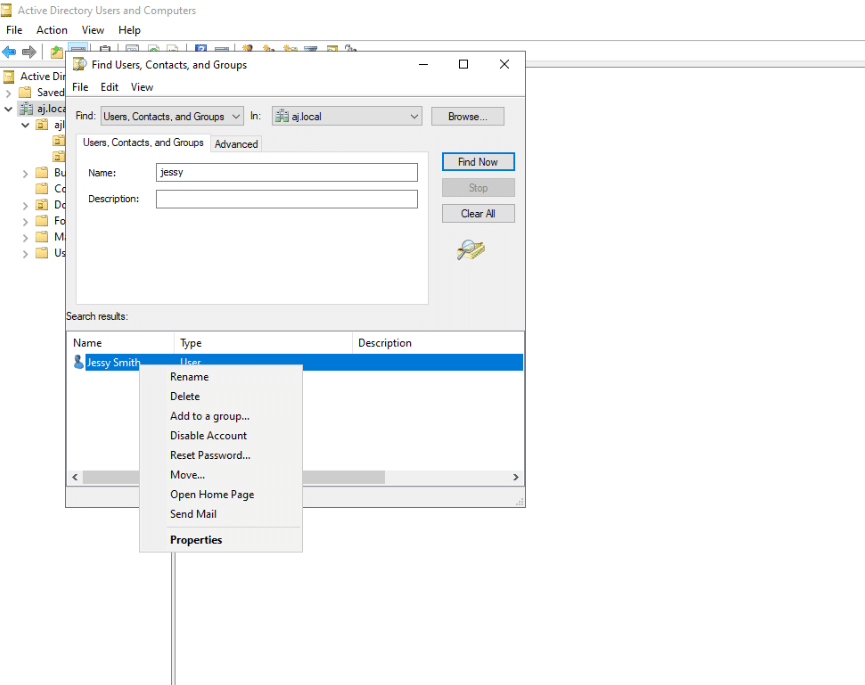

Open Active Directory Users and Computers (ADUC):
Navigate to Server Manager, then Tools, and select Active Directory Users and Computers.
- Access the “Find” Feature:
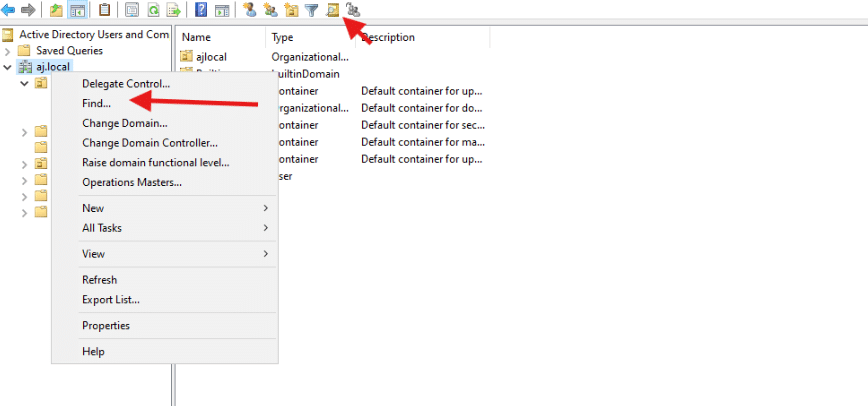
- Click the “Find objects in Active Directory Domain Services” icon (which typically looks like a magnifying glass or star) located in the toolbar at the top of the ADUC window.
- Alternatively, you can right-click on your domain or a specific container (like an Organizational Unit) in the left-hand pane and choose “Find…” from the context menu.
- Configure Your Search Criteria:
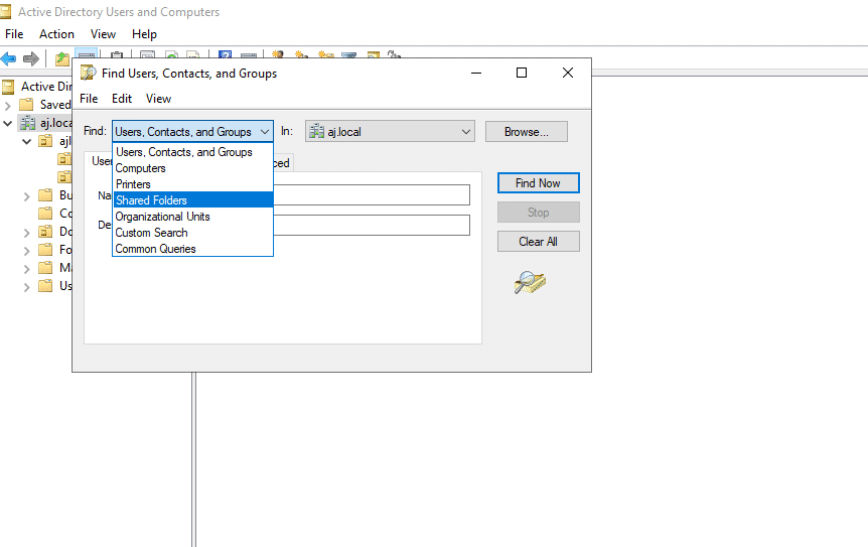
- In the “Find Users, Contacts, and Groups” dialog box, select the type of object you are looking for from the “Find” dropdown menu (e.g., User, Computer, Group).
- Specify the search scope: Use the Browse button to select a specific container or Organizational Unit (OU) if you want to narrow down your search. If left as “Entire directory,” the search will cover the entire Active Directory, which can be slower on large networks.
- Enter search terms: Provide keywords in the relevant fields, such as “Name” or “Description,” based on the object type you selected.
- Advanced Search (Optional): For more complex queries, click the Advanced tab to build searches based on specific attributes.
- Execute the Search:
- Click “Find Now” (or just “Find”) to display the search results at the bottom of the dialog box.
Pro-Tips for Searching:
- You can use wildcards like an asterisk () in your search terms (e.g., _J_Smith to find names starting with “J” and ending with “Smith”).
- Searching within a specific OU can significantly speed up the process on large networks.